How to Connect to Wi-Fi
This guide connects your phone to home Wi‑Fi. Work through it top to bottom — one step at a time. First run the four quick checks below. Then follow Steps 1–8. Have an iPhone? Use the iPhone pictures in Step 2. Have Android? Use the Android pictures instead.
How to use this guide
- One step at a time. Read the green caption, look at the picture, then do the bullets.
- Go slow. Do one numbered step, then scroll to the next.
- One picture = one action. Each image shows a single thing to check or tap.
- On your phone? Use Jump to section at the top.
- Still stuck? See when to call your internet company.
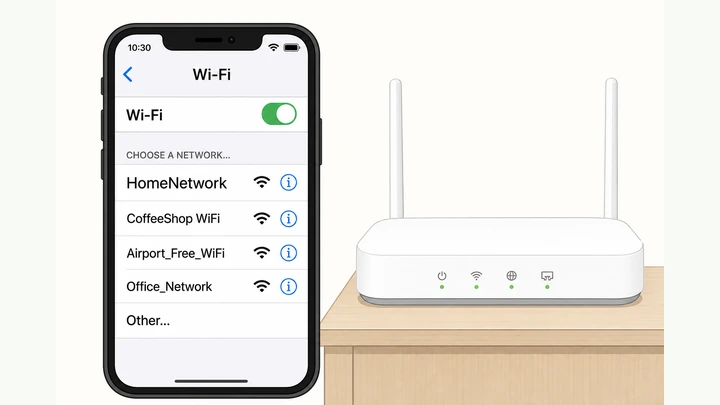
Things You'll Need
- Your smartphone (iPhone or Android)
- Home router plugged in
- Pen and paper
- Router sticker with network name and Wi‑Fi password
What is going wrong?
First time? Start with four checks, then Steps 1–8.
Phone or laptop?
- Phone — Four checks, then Steps 1–8.
- Laptop — Laptop branch.
- Connected, no internet — Fix Wi-Fi.
Four quick checksDo these before you touch Settings
Is the router turned on?
Power light should be steady green — not blinking red.
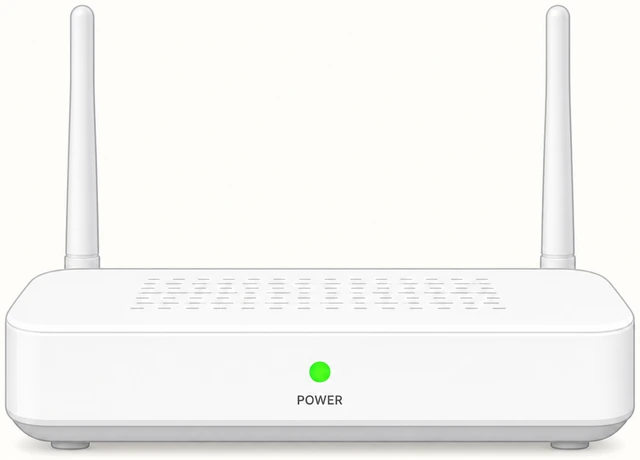
- Look at the box with antennas — that is your router.
- The power light should stay on without flashing red.
- If all lights are off, check the power plug.
Do you have the network name and password?
Find the sticker on the bottom or back — write both lines on paper.
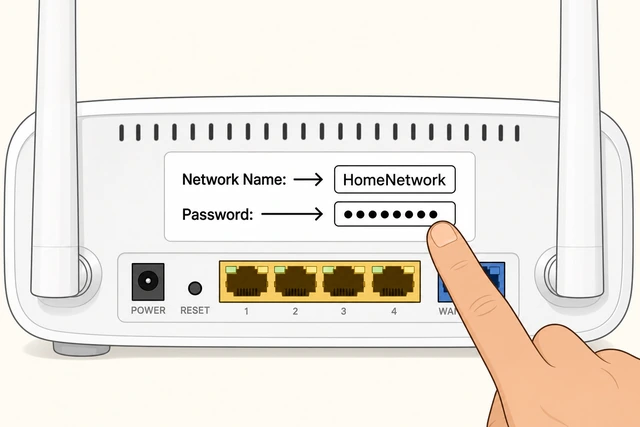
- Turn the router over or look on the back.
- Copy the network name and Wi‑Fi password to paper.
- You will need these in Step 6.
Is airplane mode turned off?
Airplane mode must be OFF before Wi‑Fi can work.
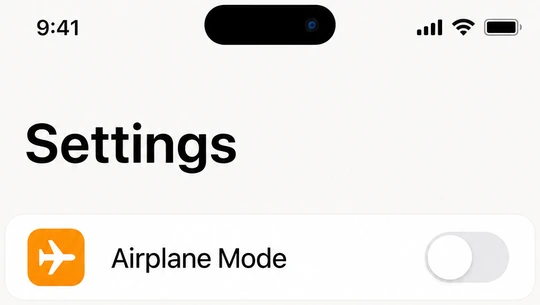
- Open Settings on your phone.
- Find Airplane mode — switch should be OFF.
- If it was ON, turn it OFF and wait five seconds.
Will you join your own home network?
Join the name on your sticker — not random free Wi‑Fi in the building.
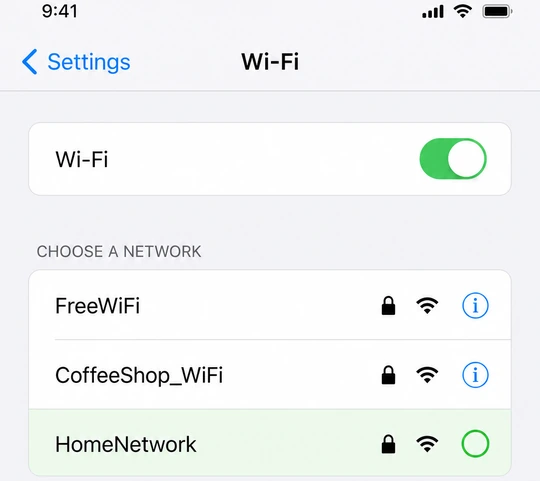
- Your network name is on the router sticker you copied.
- Do not tap open networks named Free WiFi or Guest unless staff told you to.
- All four checks done? Continue to Step 1 below.
Steps 1–8Connect your phone to home Wi‑Fi
Learn what the sticker labels mean.
Network name = what you tap in the list · Password = what you type in Step 6.
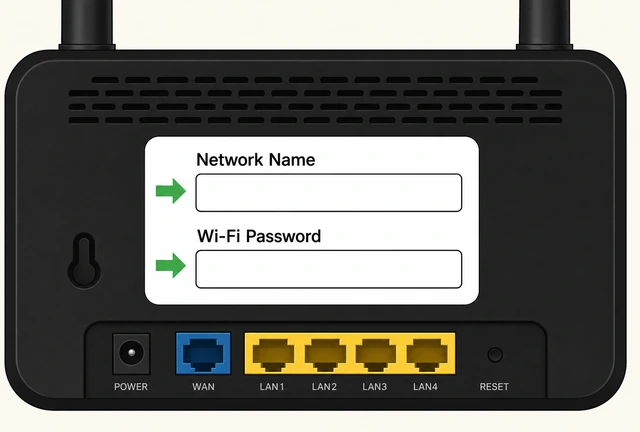
- The network name is what appears in the phone list.
- The Wi‑Fi password is what you type — not the admin password.
- Keep your paper copy nearby for Step 6.
iPhone — open the Settings app.
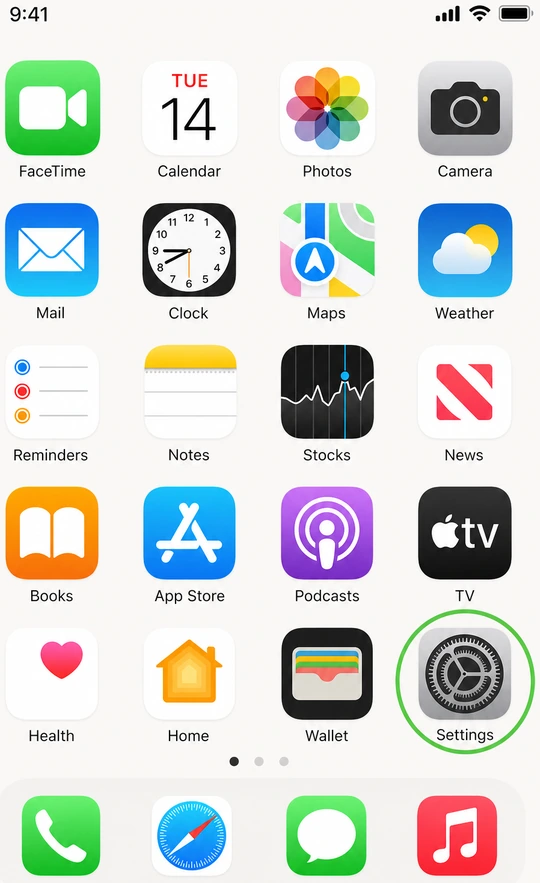
In Settings, tap <strong>Wi‑Fi</strong> — do not tap yet, just open the menu.
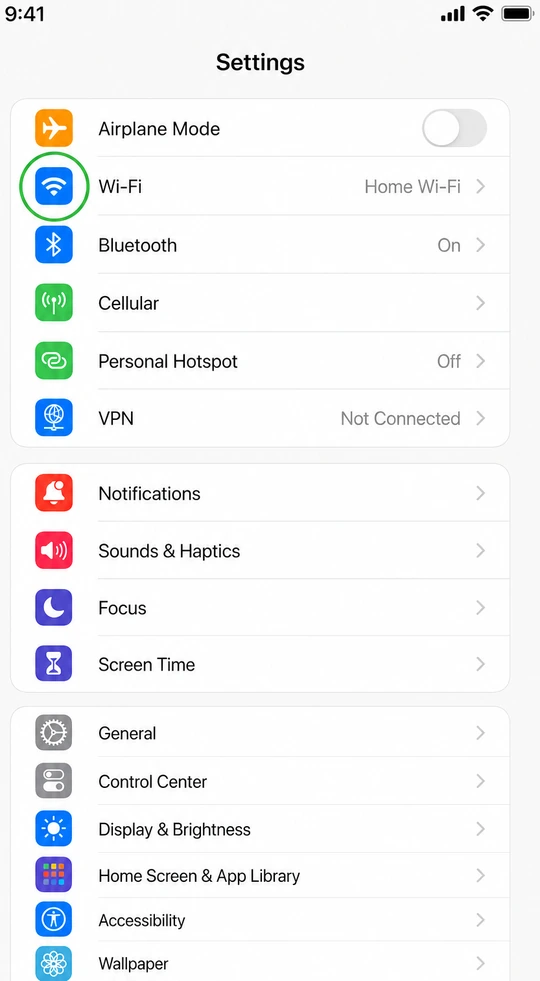
- Find the Settings app on your home screen.
- Tap Settings once.
- Tap Wi‑Fi in the list.
Android phone? Skip to Step 3.
Android — open Settings to Internet.
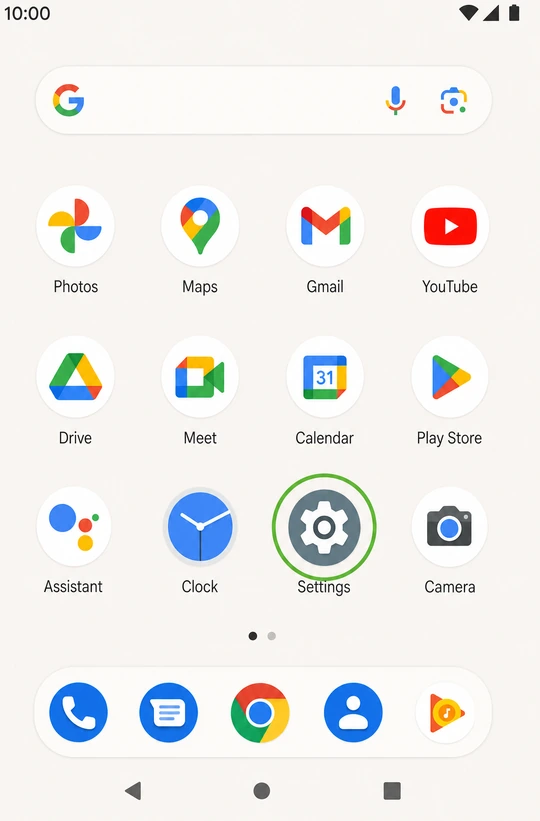
Tap <strong>Network & internet</strong>.
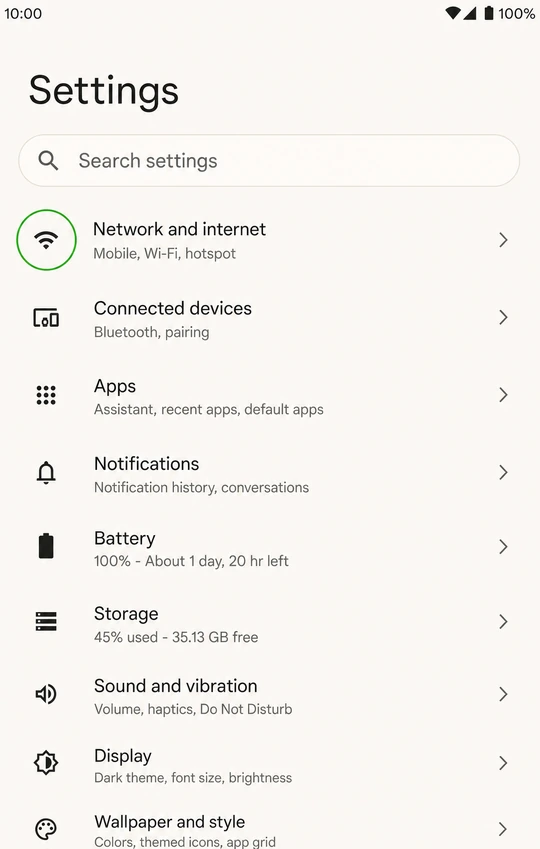
Tap <strong>Internet</strong> to reach the Wi‑Fi list.
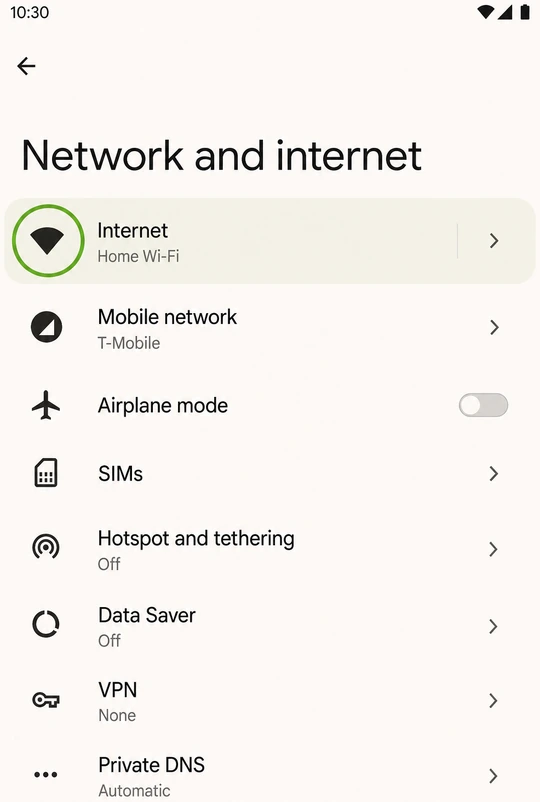
- Open Settings from the home screen.
- Tap Network & internet, then Internet.
- iPhone users already did Step 2 — skip to Step 4.
Turn Wi‑Fi ON and wait for names.
Flip the Wi‑Fi switch to ON (green). Wait 5–10 seconds for names to appear.
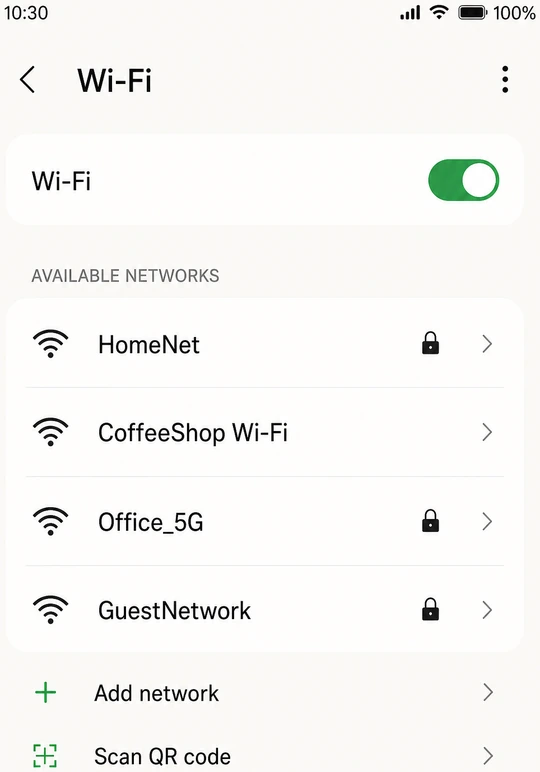
- Find the Wi‑Fi toggle at the top.
- Switch it ON — it should turn green.
- Wait until you see a list of network names.
Tap your home network name.
One tap on the row that matches your paper copy. Lock icon is normal.
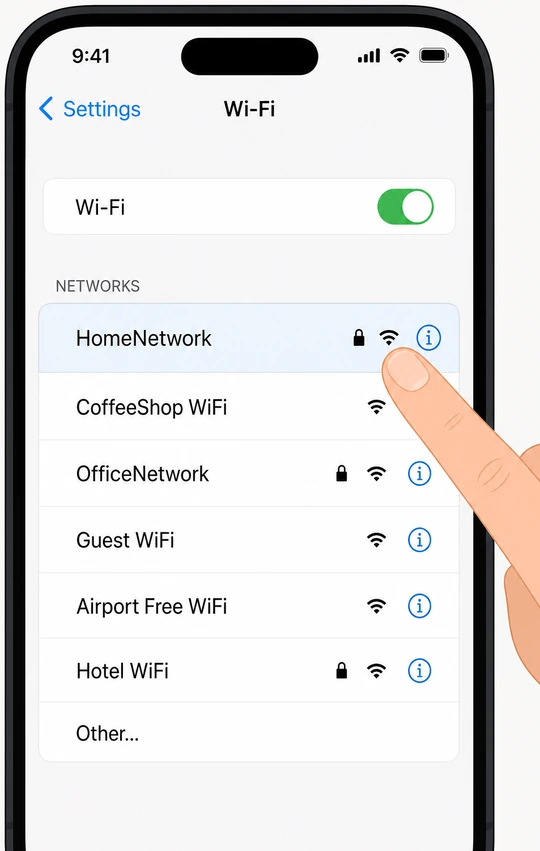
- Scroll if needed — your network may not be first.
- Match spelling exactly to your sticker.
- Do not pick a neighbor's network or open public Wi‑Fi.
Name not listed? → Network missing.
Type the password and tap Join.
Type from your paper copy · iPhone: Join · Android: Connect.
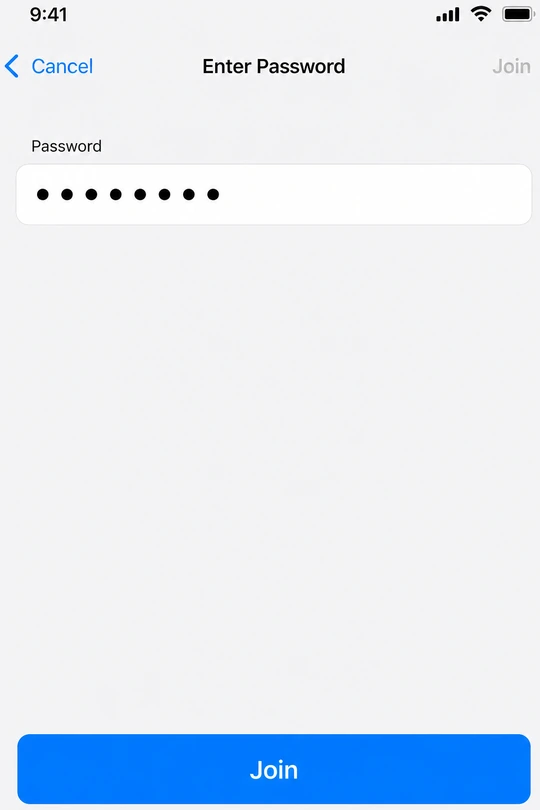
- Type the password carefully — capitals matter.
- Double-check against your paper copy.
- Tap Join or Connect once and wait.
Fails right away? → Wrong password.
Look for Connected or a checkmark.
Blue checkmark (iPhone) or Connected label (Android) means success.
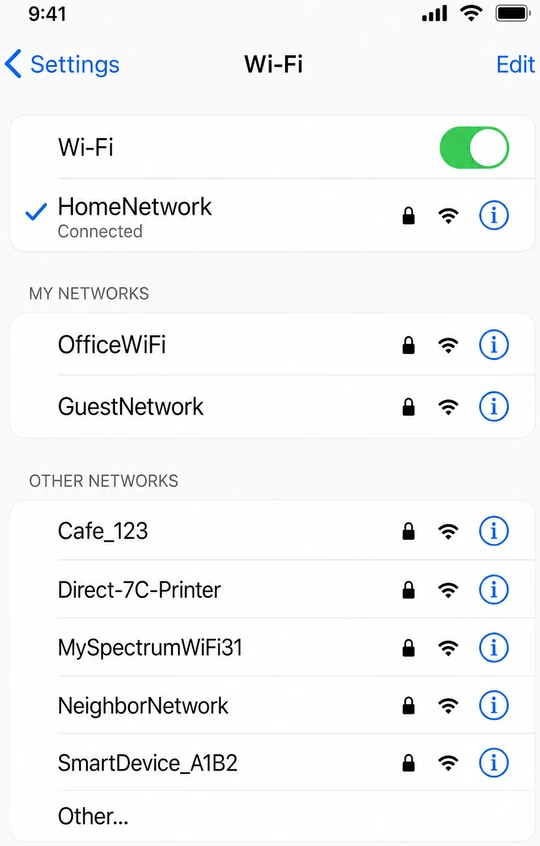
- Wait a few seconds after tapping Join.
- You should see a checkmark or the word Connected.
- Asked for password again? It was wrong — retype from sticker.
Open a browser and load a webpage.
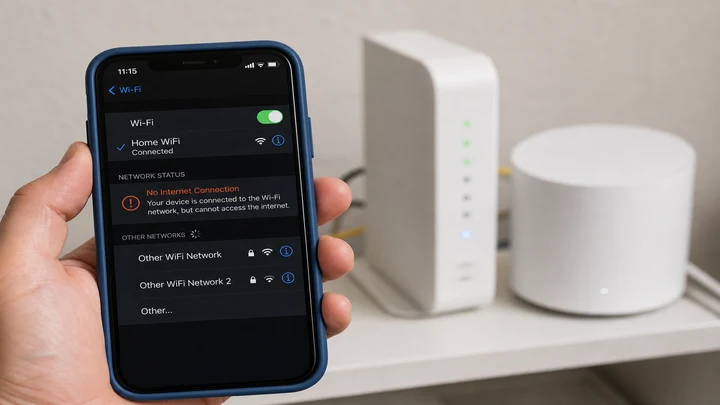
If a page loads, you are online. Connected but no page? See fix guide.
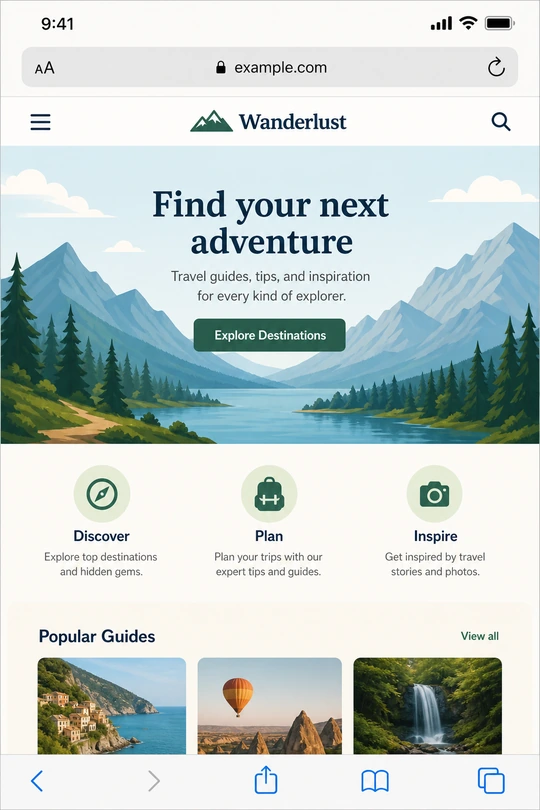
- Open Safari, Chrome, or any browser.
- Visit any website you know.
- Page loads? You are done.
Wi‑Fi connected but no internet? → How to Fix Wi-Fi.
Network not in the listWi‑Fi is ON but your home name never appears
Neighbors show up but yours does not.
Stand next to the router and refresh the list.
Stand within 20 feet · toggle Wi‑Fi off and on once.
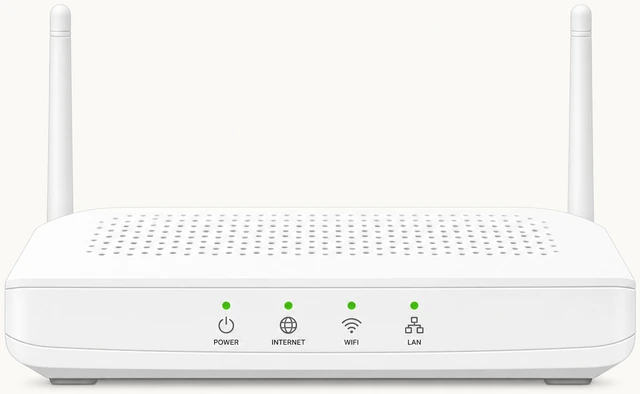
- Walk close to the main router box.
- Turn Wi‑Fi OFF, wait five seconds, turn ON again.
- Wait two minutes after a power outage before trying.
Look for a second network name on the sticker.
Some routers show two names — try the one on your sticker.
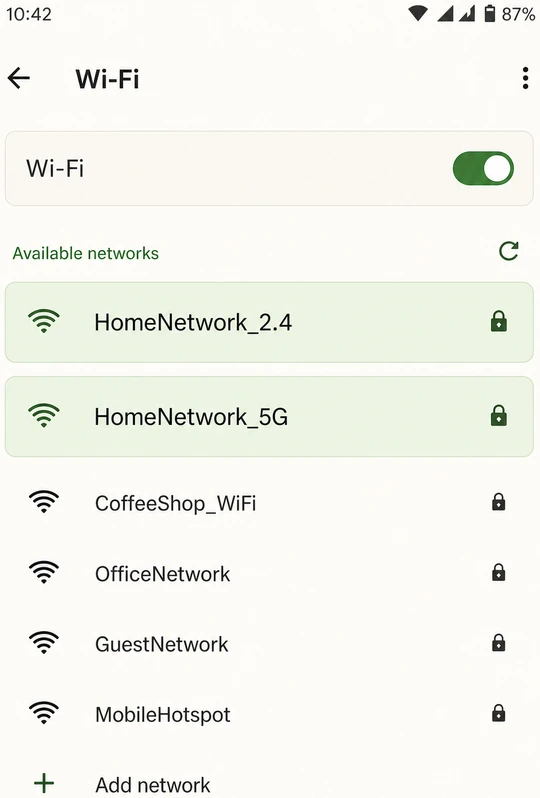
- 2.4 GHz reaches farther — good for bedrooms.
- 5 GHz is faster near the router.
- Hidden name? Tap Add network and type it manually.
Password will not workJoin fails every time
Right network, wrong password message.
Retype from the sticker — watch O vs 0.
Read the sticker again — do not use an old photo if it is blurry.
- Type by hand instead of paste.
- Guest networks use a different password.
- Ask if someone changed the password recently.
Forget the network and start over.
Tap ⓘ next to the name → Forget → pick network again → retype password.
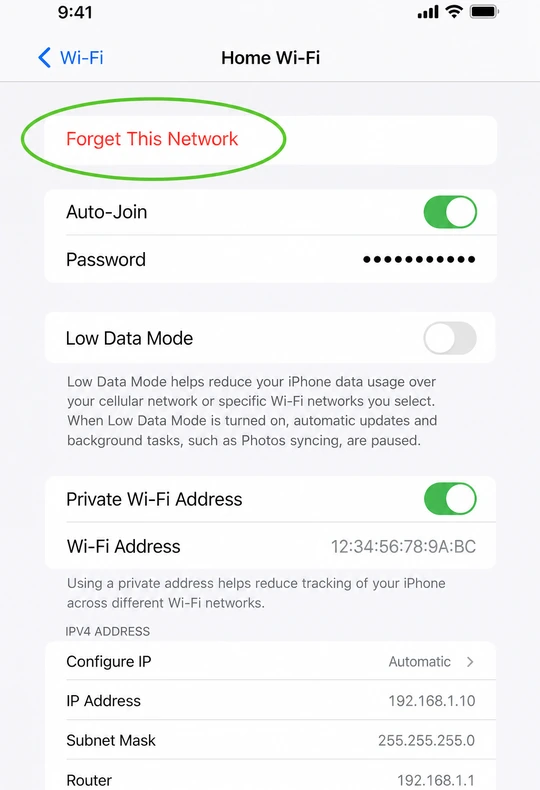
- Tap the ⓘ or info icon beside the network.
- Tap Forget This Network.
- Select the network again and type the password fresh.
Connecting a laptopSame sticker — different menu
Windows or Mac, not a phone.
Use the same sticker as for a phone.
One sticker works for every device in the home.
- Copy network name and password to paper.
- Then open laptop Wi‑Fi settings.
Connect from the taskbar or menu bar.
Click Wi‑Fi icon → your network → Connect → enter password.
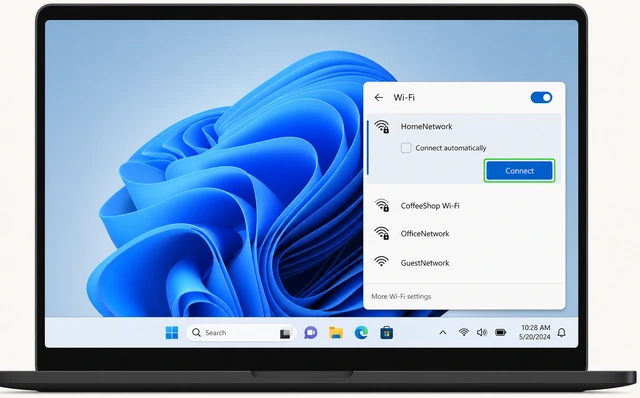
- Windows: taskbar Wi‑Fi icon → network → Connect.
- Mac: menu bar Wi‑Fi icon → network → enter password.
When to get help
- Ask a family member or neighbor to read the next step with you.
- No home network within 20 feet after restarting the router.
- Sticker password fails and nobody knows a new one.
- Every device connects but nothing loads — call your internet company.
Warnings
- Do not join unknown open Wi‑Fi in public places.
- Do not share your home password in text messages to large groups.
FAQ
Connected but websites will not load?
Your phone reached the router but the internet line may be down. Unplug modem and router, wait three minutes, plug back in. If every device fails, call your internet company.
Which network name should I pick — 2.4 or 5?
Pick whichever name is printed on your sticker. If you see two names, try 2.4 GHz for distance or 5 GHz for speed in the same room.
Comments
Questions, corrections, and what worked for you. Comments are reviewed before they appear.